Getting Started
Overview
OneSource IT offers a wide range of features that can be configured to meet the needs of your organization. OneSource IT features are configurable at both the entity and user levels. They include:
At the entity level, features such as punch-out capability, standard catalog, workflow, and other advanced shopping features.
At the user level, features such as workflow roles, authority for reviewing and approving quotes, and other user-level privileges.
This Help system covers features that may not be enabled for your organization's OneSource IT site. If you have any questions about the features available to you, please contact your OneSource IT administrator or your ePlus Sales Representative.
User Permission and Privilege-Based Functionality
OneSource IT offers a wide range of features and functions to meet the needs of our customers. Some of the features described in this Help system are available only to users who have the appropriate privileges. New users may be limited to view-only access to quotes and order/invoice status until their accounts are fully activated.
If you don't have access to features or functions described in this Help system, but would like access to these features and functions, please contact your ePlus Sales Representative.
Configuration of Your Organization's Site
Direct Online Shopping
The OneSource IT web site can be accessed directly through a web browser or accessed by "punching out" from another eProcurement solution.
If your organization accesses OneSource IT directly, your OneSource IT administrator will provide you with the OneSource IT URL and logon credentials you need to navigate to the site, log on, and shop.
Related topics:
Punch-Out Shopping
If you access OneSource IT by "punching out" of your organization's internal eProcurement system, OneSource IT appears as an option under the catalog section of your eProcurement system. When you select OneSource IT, you are taken immediately to the OneSource IT home page. It is not necessary to log in; the punch out functionality submits your credentials and logs you in to OneSource automatically.
When you are done shopping in OneSource IT and click Checkout, you are returned to your eProcurement system. Any orders you have placed in OneSource IT are automatically passed to your eProcurement system for processing.
Related topics:
General Navigation
Login and Logout
The following login procedure pertains only to direct access of OneSource IT. If you are accessing OneSource IT by punching out of another eProcurement system, you will not need to login. For more information, see Punch-Out Shopping. For information about changing your password, see Changing Your Password.
To log in to OneSource IT: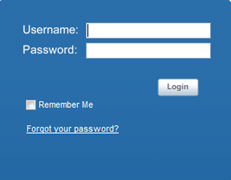
1. Point
your browser to the OneSource IT login page at:
https://one.eplusonline.com/procurement.
2. Enter the username and password provided by ePlus.
Note: OneSource IT passwords are case sensitive.
3. Click Login. OneSource IT displays the OneSource IT Home page for your organization.
Note: If you attempt to log in with an incorrect password, OneSource IT presents you with the option to reset your password. If you select this option, the Reset Password page asks you for your first name, last name, and email address. Be sure to enter the same email address that you supplied to ePlus in your OneSource IT registration.
If you continue to have problems logging in, contact your ePlus
Sales Representative or send an email to
mailto:support-onesource@eplus.com.
To log out of OneSource IT:
Click Logout in the Header Menu.
The "Remember Me" Feature
The OneSource IT Login box includes a Remember Me check box. Select this check box when you log in if you want OneSource IT to remember your credentials for the duration of your session. If you select Remember Me, and then close your browser during your session, you will automatically be logged back in to OneSource IT when you relaunch your browser and return to the OneSource IT URL.
The Remember Me check box is automatically cleared when you
log out of OneSource IT.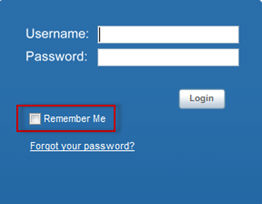
Note: If you are accessing OneSource IT by punching out of another eProcurement system, you will not need to log in or use the Remember Me feature. For more information, see Punch-Out Shopping.
Home Page
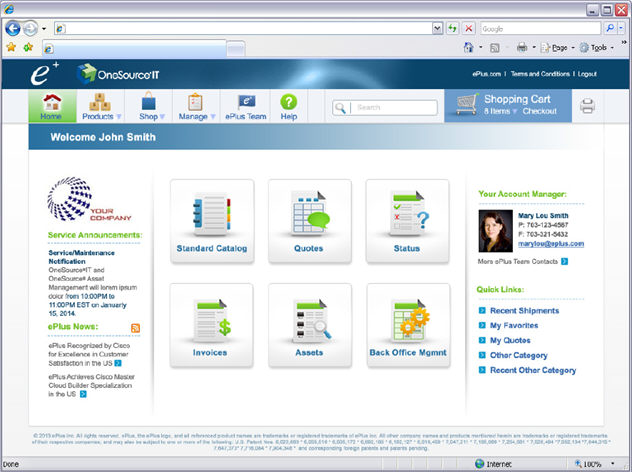
After you log in (or punch in) to OneSource IT, the OneSource IT Home page displays. The Home page is your starting point for browsing and searching the catalog, placing and approving orders, and accessing all other OneSource IT features and functions.
The screen capture below displays the OneSource IT Home page and identifies the Header Menu, Search Box, Catalog Menu, Quick-access Buttons, Notifications Box, Messages Box, and Main Menu.
The Header, Catalog, and Main Menus provide the tools and commands you use to perform tasks and navigate in OneSource IT.
The Search Box provides the means to search for products and orders.
The Standard Catalog, Quotes, Status, Approvals, and Invoices quick-access buttons provide one-click access to these functional areas of the application.
The Notifications box lists recent news items, such as upcoming release or planned maintenance announcements, published to the site by ePlus’s OneSource IT Team.
The Messages box lists recent news items published to the site specifically for your organization by your ePlus Sales Representative. Your Sales Representative will have the flexibility to customize these messages. Note that the personalized information (organization name and user name) previously displayed in the banner now appears in the Messages box.
This Help system refers to the above menus and options when discussing various features and commands.
Note: The features of the Header, Catalog, and Main menus may differ from those shown below, depending on your user privileges and how OneSource IT is configured for your organization.
Header Menu

The Header Menu includes the following links:
About Us – Takes you to the OneSource IT pages on the ePlus web site.
Contact Us – Provides email addresses for OneSource IT Support, Sales, Customer Service, Accounts Receivable, and Returns.
Help – Displays the OneSource IT Help system.
Terms and Conditions – Displays the Terms and Conditions of Use of OneSource IT.
Logout – Logs you out of OneSource IT and returns you to the Login page or to the eProcurement system that you have punched out of to access OneSource IT.
Catalog Menu

The Home link in the left side of this menu takes you to the OneSource IT Home page from anywhere in the application.
The remaining menu items are product classifications that contain product category submenus. You can point and click to browse the contents of the entire ePlus catalog. For more information, see Browsing the ePlus Catalog.
Search Box

The Search box includes:
A text entry box where you type the keyword or ID of the product you're looking for.
A drop-down list box that allows you to select the type of search you want to perform.
A Go button to launch your search.
For more information, see Searching by Keyword or Part #
Main Menu
The Main Menu includes links that allow you to navigate through the OneSource IT site, shop, submit requisitions, request quotes, track orders, and more. The Shopping Carts through Promotions links are grouped within the Shop box. The Status through Administration links are grouped within the Manage box:
Shopping Carts, Standard Catalog, Templates - Provides access to your shopping carts, your organization's standard catalog, and your shopping cart templates.
Memory Configurator, Printer Supplies, Belkin Cable - Provides access to the Kingston Memory Configurator, the Printer Supplies wizard, and the Belkin Cable wizard. With the variety of computer technology available, choosing the right supplies for your system can be difficult. The Kingston Memory Configurator helps you find the right memory for any type of laptop, desktop, server, or other computing device. The Printer Supplies wizard helps you find the right supplies for your printer's specific make and model. The Belkin Cable wizard helps you quickly find the cable and connector items compatible with your computer system.
Quotes, Request a Quote, Previously Purchased, Promotions - Provides links to the Quotes option, Request a Quote form, Previously Purchased option, and Promotions feature. The Previously Purchased option allows you to access the complete list of items you've ordered in the past 90 days. The Promotions feature provides easy access to the complete list of One Source IT items associated with an instant rebate.
Status – Lets you track the progress of orders from pending status through shipping and invoicing.
Approvals – Allows you to check on the approval status of your requisitions or requested quotes.
Invoices – Allows you to review the vendor invoices generated from your approved orders.
Reports – If any reports have been configured for your organization, this is where you would go to generate and access them. If you have questions about OneSource IT reporting capabilities, contact your ePlus Sales Representative.
Audit Orders - The Audit Orders feature lets you search for the status of any order submitted during a specified time frame by either order number or purchase order number.
Audit Parts - The Audit Parts feature lets you search for the status of any order submitted during a specified time frame by the ID of a product.
Asset Tracking - Enables an organization's users to save ordered items as assets and then search for and review asset detail as needed.
My Account – Provides access to the range of options (change password, set preferences, update shipping address or contact information, etc.) available for managing your OneSource IT user account. The Preferences page lets you set various default values (if your organization has multiple values for these attributes), such as shipping and payment method, within OneSource IT.
Administration – Provides access to any administrative pages to which you have appropriate account privileges, for example, to the administrative pages for updating the Standard Catalog.
The Main Menu also includes contact information for the ePlus Sales Representative assigned to your account. If you have any questions about OneSource IT or your account, your Sales Representative will be happy to help you.
Note: The Main Menu is visible on all OneSource IT pages except on Results List pages. You can always restore the Main Menu by clicking the Home link in the Catalog Menu.
 ©2014 ePlus inc. All rights reserved. ePlus,
the ePlus logo, and all referenced product names are trademarks or
registered trademarks of ePlus inc. All other company names
and products mentioned herein are trademarks or registered trademarks
of their respective companies.
©2014 ePlus inc. All rights reserved. ePlus,
the ePlus logo, and all referenced product names are trademarks or
registered trademarks of ePlus inc. All other company names
and products mentioned herein are trademarks or registered trademarks
of their respective companies.