Quotes
Quotes Overview
OneSource IT can be configured to allow your ePlus Sales Representative
to present you with online quotes for your review and approval.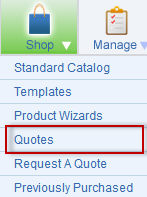
Options to requesting a quote:
1. You can request a quote by speaking directly with your ePlus Sales Representative.
2. Use the Request a Quote form available in the Shop box in the Main Menu.
3. Add items to your shopping cart and click on Request a Quote within the shopping cart.
Steps after requesting a quote:
1. When you request a quote online, OneSource IT sends an email notification to each ePlus Sales Representative associated with your organization's account in OneSource IT. This helps ensure that ePlus responds promptly to your request.
2. The ePlus Sales Representative then sends back a quote to the user.
3. After a user reviews a submitted quote, the user can return the quote to the ePlus Sales Representative (for example, to update the quote based on negotiations between the organization and ePlus), reject the quote, or approve the quote all from within the OneSource IT user interface.
4. The ePlus Sales Representative can update the quote in OneSource IT and then route it back to the user for another review and approval.
The Interactive Quote (Request a Revision) feature captures any notes entered for a quote by the user or ePlus Sales Representative. The user can access these notes in the Quote History section of the Quote page. The Interactive Quote feature also enables a user to add an attachment file to a quote. The user or ePlus Sales Representative can view the attachment files associated with a quote.
When a quote is posted to OneSource IT, an email notifies the designated approver within your organization that a quote is ready for review. Quotes are accessed through the Quotes link in the Shop box in the Main Menu.
Depending on the configuration of your OneSource IT site, the quote may be presented in the form of a .PDF document or a Web page ("Quote to Cart").
PDF Quotes
Quotes delivered in the form of PDF files can be reviewed and approved online, but cannot be edited.
To review a PDF quote:
1. Click Quotes in the Shop box to display a list of all quotes that need to be reviewed.
2. The quote PDF opens in the OneSource IT window, which includes Accept and Reject buttons.
3. You can accept or reject the quote:
Click Accept. You will be prompted for your Purchase Order number. Enter the PO number and click Accept Quote. Your ePlus Sales Representative will enter the order into OneSource IT as an order. It will then appear in your Open Orders list.
To reject the quote, click Reject.

Note: OneSource saves all the notes entered by a user or the ePlus Sales Representative for a quote. The notes can be accessed in the Quote History section of the Quote Details page.
Interactive Quoting
If the Interactive Quoting feature is enabled for your organization, your quotes will be viewable as an editable Web page.
To review an online interactive quote:
1. Click Quotes in the Shop box to display a list of all quotes that need to be reviewed.
2. Click on a quote to view details of the order. The quote will be displayed as a Web page.
Note: You can also open a PDF
version of the quote by clicking the PDF icon .
The quote PDF opens in a separate window, from which you can print
or save the quote in PDF format.
.
The quote PDF opens in a separate window, from which you can print
or save the quote in PDF format.
3. You can reject the quote, request a revised quote, or checkout (approve a quote):
To approve the quote, click Checkout. The quote is added to a shopping cart and displayed in the Checkout page. Click Submit at the bottom of the Checkout page to send your order to OneSource IT. It will then appear in your Open Orders list.
To reject the quote, click Reject.
To request a revised quote, click Request Revision.
 ©2014
ePlus inc. All rights reserved. ePlus, the ePlus logo, and all referenced
product names are trademarks or registered trademarks of ePlus inc. All
other company names and products mentioned herein are trademarks or
registered trademarks of their respective companies.
©2014
ePlus inc. All rights reserved. ePlus, the ePlus logo, and all referenced
product names are trademarks or registered trademarks of ePlus inc. All
other company names and products mentioned herein are trademarks or
registered trademarks of their respective companies.